![[ANSYS, Inc. Logo]](fluentlogo.gif)


|
|
|
There are two ways to add text annotations with optional attachment lines to the graphics windows. You can either use the mouse-annotate function for one of the mouse buttons, or use the Annotate dialog box. Both of these methods are described in this section. Figure 29.2.3 shows an example of a graphics display with annotated text in it.
Adding Text Using the
Annotate Dialog Box
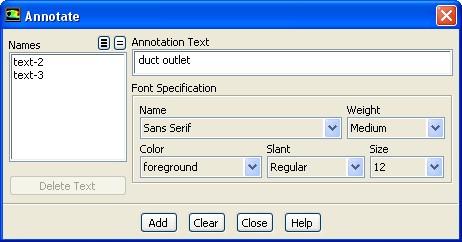
Adding text to the graphics window using the Annotate dialog box (Figure 29.2.4) allows you to control the font and color of the text.
 Graphics and Animations
 Annotate...
The steps for adding text are as follows:
Adding Text Using the
Mouse-Annotate Function
To add text annotations to the graphics window using the mouse-annotate function, you must first set the function of one of the mouse buttons to be mouse-annotate in the Mouse Buttons dialog box. (See Section 29.3 for details about modifying the mouse button functions.) Then, click the mouse-annotate button in the desired location in the graphics window. A cursor will appear and you can type the text directly in the graphics window. Dragging the mouse with the mouse-annotate button depressed will draw an attachment line from the point where the mouse was first clicked to the point where it was released. The cursor will then appear at the point where the mouse button was released.
You can use the Annotate dialog box to edit or delete text added using the mouse, as described below.
Editing Existing Annotation Text
Once you have added text to the graphics display, using either the Annotate dialog box or the mouse-annotate function, you may change the font characteristics of one or more text items, or delete individual text items.
To modify or delete existing text, follow these steps:
Note that if you want to make changes to all current annotation text, you can select all of the Names instead of just one in step 1.
You can move the text in the same way that you move other geometric objects in the display, using the Scene Description dialog box and the Transformations dialog box. See Section 29.6.3 for details.
Clearing Annotation Text
Annotation text is associated with the active graphics window and is removed only when the annotations are explicitly cleared. To remove the annotations from the graphics window, you must click the Clear button in the Annotate dialog box (even if you use the mouse-annotate function to add the text). If you draw new graphics in the window without clearing the annotations, they will remain visible in the new display.
Previous:
29.2.3 Changing the Legend