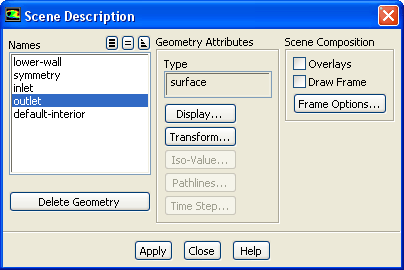
The
Scene Description dialog box allows you to turn overlays on and off, select geometric objects in the display for modification or deletion, and open dialog boxes that control various characteristics of the selected object(s). (Note that you cannot use the
Scene Description dialog box to control XY plot and histogram displays.) See Section
29.6 for details about the items below.
Controls
Names
contains a list of the geometric objects that currently exist in the scene (including those that are presently invisible). You can specify the object or objects to be manipulated by selecting names in this list. If you select more than one object at a time, any operation (transformation, color specification, etc.) will apply to all the selected objects. You can also select objects by clicking on them in the graphics display using the mouse probe button, which is, by default, the right mouse button. (See Section
29.3 for information about mouse button functions.) To deselect a selected object, simply click on its name in the
Names list. See Section
29.6.1 for details.
Geometry Attributes
contains information about the type of the selected geometric object and push buttons which open dialog boxes for modifying the object.
Type
reports the type of the selected object. Possible types include
mesh,
surface,
contour,
vector, and
Group. This information is especially helpful when you need to distinguish two or more objects with the same name. When more than one object is selected, the type displayed is
Group.
Display...
opens the
Display Properties dialog box, which allows you to change the color, visibility, and other properties for the selected object.
Transform...
opens the
Transformations dialog box, which allows you to translate, rotate, and scale the selected object.
Iso-Value...
opens the
Iso-Value dialog box, which allows you to change the isovalue of an isosurface. This push button is available only if the geometric object selected in the
Names list is an isosurface or a object on an isosurface (contour on an isosurface, for example); otherwise it is grayed out.
Pathlines...
opens the
Pathline Attributes dialog box, which allows you to set the maximum number of steps for the selected pathlines. This is most useful in animating the path of a set of particles.
Scene Composition
contains controls for enabling overlays and bounding frames.
Overlays
activates the superimposition of a new geometry onto a currently displayed geometry. See Section
29.2.1 for details.
Draw Frame
activates the display of a bounding frame in the graphics display. See Section
29.6.7 for details.
Frame Options...
opens the
Bounding Frame dialog box, in which you can define properties of the bounding frame. See Section
29.6.7 for details.
Delete Geometry
deletes the geometric object that is currently selected in the
Names list. The ability to delete individual objects is especially useful if you have overlays on and you generate an unwanted object (e.g., if you generate contours of the wrong variable). You can simply delete the unwanted object and continue your scene composition, instead of starting over from the beginning.
Apply
saves the status of
Overlays and
Draw Frame. When you turn
Overlays or
Draw Frame on or off, you must click the
Apply button to see the effect of the change on subsequent display operations.
![[ANSYS, Inc. Logo]](fluentlogo.gif)