![[ANSYS, Inc. Logo]](fluentlogo.gif)


|
|
|
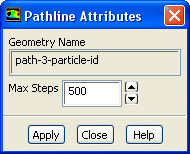
If you are creating animations of existing pathlines, you may want to change the number of steps used in the computation of the pathlines. This allows you to animate pathlines advancing through the domain. To do so, select the pathlines in the Names list in the Scene Description dialog box and then click the Pathlines... button to open the Pathline Attributes dialog box (Figure 29.6.6).
In the Pathline Attributes dialog box, set the new maximum number of steps for pathline computation ( Max Steps). After you change the value and click Apply, the selected pathline will be recomputed and redrawn.
An Example of Pathline Modification for an Animation
You can use the following procedure to animate pathlines from step 2 to step 101 (for example):
When you play back the animation, ANSYS FLUENT will animate the pathlines so that they advance one step in each frame.
Previous:
29.6.4 Modifying Iso-Values