[ANSYS, Inc. Logo] return to home search
next up previous contents index

27.3.1 Performing Gradient Adaption

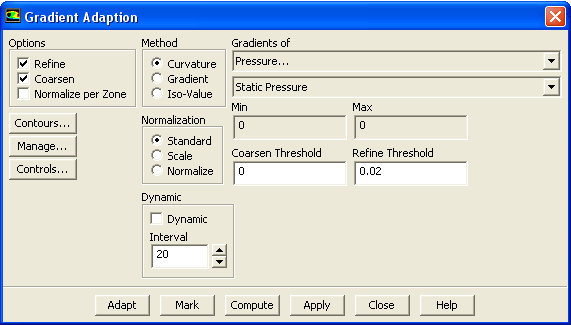
The Gradient Adaption dialog box (Figure  27.3.1) allows you to perform gradient adaption.

Adapt $\rightarrow$ Gradient...

Figure 27.3.1: The Gradient Adaption Dialog Box
figure

The procedure for performing gradient adaption is as follows:

1.   Select appropriate adaption method.

  • Curvature is the criterion for adaption, formerly used by ANSYS FLUENT and is recommended for problems with smooth solutions.

  • Gradient is recommended for problems with strong shocks (e.g., supersonic inviscid flows).

  • Iso-Value is recommended for problems where derivatives are not helpful, or when you want to customize the adaption criterion (using custom field functions, user-defined scalars, etc.).

2.   Select a Normalization method:

  • Standard if normalization of the gradient or curvature is not to be performed.

  • Scale if the gradients or curvature are to be scaled by the average value in the domain.

  • Normalize uses a scaling by the maximum value of the variable in the domain, i.e., the gradient or curvature are bounded by [0, 1].

Using either scaling or normalization makes the setting of the refine and coarsen thresholds much simpler, and almost independent of the current solution and specific problem.

  This is especially important when using the automated dynamic adaption process.

3.   Select the required solution variable in the Gradients of drop-down list.

4.   Click Compute.

5.   Click Contours... to open the Contours dialog box.

(a)   Enable Filled contours, disable Node Values, choose Adaption... and Existing Value in the Contours of drop-down list.

(b)   Select the appropriate surfaces (3D only).

(c)   Click Display to see the location of cells with each curvature value.

By displaying different ranges of values (as described in Section  29.1.2), you can determine the range of curvatures for which you want to adapt cells.

  If you are using normalization, the range for the curvatures of any variable will always be [0, 1].

6.   Set the values for Refine Threshold.

  Cells with gradient values above this value will be either marked or refined.

7.   Select the Normalize per Zone option for cases where different flow conditions exist for different zones.

This approach of zonal normalization normalizes (scale or normalize) each zone of the domain in contrast to normalization on the whole domain. This approach is useful for dynamic adaption (see Section  27.4 for details), where you want to solve the flow problem involving different flow intensities in the different cell zones.

If you use gradient adaption for the whole domain, the small gradients may be neglected in comparison to large gradients depending on the adaption threshold. Activating Normalize per Zone in the Gradient Adaption dialog box will scale or normalize each zone independently, which means the strongest gradient for each zone is considered separately for adaption of that zone.

Note:   If you expect gradients of different intensities throughout the domain and you want to resolve them, separate the domain into different zones for precise zonal normalization. This approach is referred as zonal adaption.

8.   If you want to coarsen the mesh, set the Coarsen Threshold to a nonzero value. Cells with gradient values below the specified value will be either marked or coarsened.

9.   To set adaption options (described in Section  27.12), click Controls... to open the Mesh Adaption Controls dialog box.

10.   To mark the cells for adaption (refinement/coarsening), click Mark. You can then place the cells in an adaption register, which can be manipulated (as described in Section  27.11.1). To perform the adaption immediately, click Adapt.

Note:   To disable refinement, coarsening, or marking for refinement/coarsening, turn off the Refine or Coarsen option before marking or adapting.


next up previous contents index Previous: 27.3 Gradient Adaption
Up: 27.3 Gradient Adaption
Next: 27.4 Dynamic Gradient Adaption
Release 12.0 © ANSYS, Inc. 2009-01-29