![[ANSYS, Inc. Logo]](fluentlogo.gif)


|
|
|
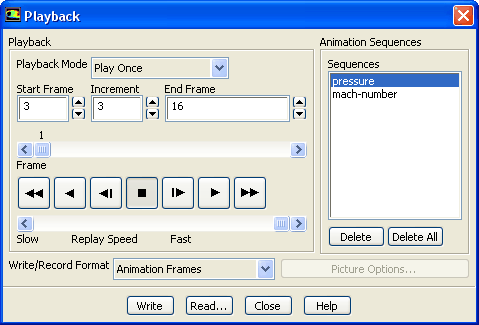
Once you have defined a sequence (as described in Section 26.16.1) and performed a calculation, or read in a previously created animation sequence (as described in Section 26.16.4), you can play back the sequence using the Playback dialog box (Figure 26.16.3).
 Graphics and Animation

 Solution Animation Playback
 Set Up...
Under Animation Sequences in the Playback dialog box, select the sequence you want to play in the Sequences list. To play the animation once through from start to finish, click the "play'' button under the Playback heading. (The buttons function in a way similar to those on a standard video cassette player. "Play'' is the second button from the right--a single triangle pointing to the right.) To play the animation backwards once, click the "play reverse'' button (the second from the left--a single triangle point to the left). As the animation plays, the Frame scale shows the number of the frame that is currently displayed, as well as its relative position in the entire animation. If, instead of playing the complete animation sequence, you want to jump to a particular frame, move the Frame slider bar to the desired frame number, and the frame corresponding to the new frame number will be displayed in the graphics window.
|
|
For smoother animations, enable the
Double Buffering option in the
Display Options dialog box (see Section
29.2.7). This will reduce screen flicker during graphics updates.
|
Additional options for playing back animations are described below.
Modifying the View
If you want to replay the animation sequence with a different view of the scene, you can use your mouse to modify (e.g., translate, rotate, zoom) it in the graphics window where the animation is displayed. Note that any changes you make to the view for an animation sequence will be lost when you select a new sequence (or reselect the current sequence) in the Sequences list.
Modifying the Playback Speed
Different computers will play the animation sequence at different speeds, depending on the complexity of the scene and the type of hardware used for graphics. You may want to slow down the playback speed for optimal viewing. Move the Replay Speed slider bar to the left to reduce the playback speed (and to the right to increase it).
Playing Back an Excerpt
You may sometimes want to play only one portion of a long animation sequence. To do this, you can modify the Start Frame and the End Frame under the Playback heading. For example, if your animation contains 50 frames, but you want to play only frames 20 to 35, you can set Start Frame to 20 and End Frame to 35. When you play the animation, it will start at frame 20 and finish at frame 35.
"Fast-Forwarding'' the Animation
You can "fast-forward'' or "fast-reverse'' the animation by skipping some of the frames during playback. To fast-forward the animation, you will need to set the Increment and click the fast-forward button (the last button on the right--two triangles pointing to the right). If, for example, your Start Frame is 1, your End Frame is 15, and your Increment is 2, when you click the fast-forward button, the animation will show frames 1, 3, 5, 7, 9, 11, 13 and 15. Clicking on the fast-reverse button (the first button on the left--two triangles pointing to the left) will show frames 15, 13, 11,...1.
Continuous Animation
If you want the playback of the animation to repeat continuously, there are two options available. To continuously play the animation from beginning to end (or from end to beginning, if you use one of the reverse play buttons), select Auto Repeat in the Playback Mode drop-down list. To play the animation back and forth continuously, reversing the playback direction each time, select Auto Reverse in the Playback Mode drop-down list.
To turn off the continuous playback, select Play Once in the Playback Mode list. This is the default setting.
Stopping the Animation
To stop the animation during playback, click the "stop'' button (the square in the middle of the playback control buttons). If your animation contains very complicated scenes, there may be a slight delay before the animation stops.
Advancing the Animation Frame by Frame
To advance the animation manually frame by frame, use the third button from the right (a vertical bar with a triangle pointing to the right). Each time you click this button, the next frame will be displayed in the graphics window. To reverse the animation frame by frame, use the third button from the left (a left-pointing triangle with a vertical bar). Frame-by-frame playback allows you to freeze the animation at points that are of particular interest.
Deleting an Animation Sequence
If you want to remove one of the sequences that you have created or read in, select it in the Sequences list and click the Delete button. If you want to delete all sequences, click the Delete All button.
|
|
Note that if you delete a sequence that has not yet been saved to disk (i.e., if you selected
In Memory under
Storage Type in the
Animation Sequence dialog box), it will be removed from memory permanently. If you want to keep any animation sequences that are stored only in memory, you should be sure to save them (as described in Section
26.16.3) before you delete them from the
Sequences list or exit
ANSYS FLUENT.
|
Previous:
26.16.1 Defining an Animation