![[ANSYS, Inc. Logo]](fluentlogo.gif)


|
|
|
The pressure drop parameters and effectiveness define the Core Porosity Model. If you would like ANSYS FLUENT to set the porosity of this a heat exchanger zone using a particular core model, you can select the appropriate model. This will automatically set the porous media inputs. There are three ways to specify the Core Porosity Model parameters:
If you do not choose a core porosity model, you will need to set the porosity parameters in the cell zone conditions dialog box for the heat exchanger zone(s). To do this, follow the procedures described in Section 7.2.3.
The models you define will be saved in the case file.
Using the Default Core Porosity Model
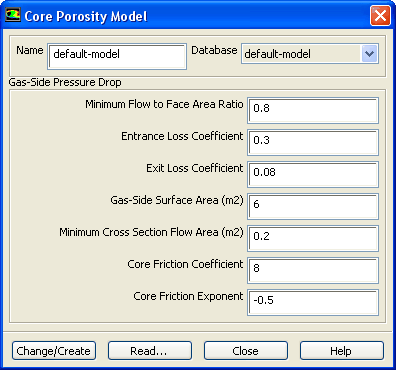
ANSYS FLUENT provides a default model for a typical heat exchanger core. The default-model core porosity model is a list of constant values from the Ungrouped Macro Heat Exchanger dialog box. These constants are used for setting the porous media parameters. To use these values, simply retain the selection of default-model in the Core Porosity Model drop-down list in the Ungrouped Macro Heat Exchanger dialog box. (You can view the default parameters as described below.)
Defining a New Core Porosity Model
If you want to define pressure-drop and effectiveness parameters that are different from those in the default core porosity model, you can create a new model. The steps for creating a new model are as follows:
 )
)
 )
)
 )
)
 )
)
 )
) and the
Core Friction Coefficient and
Core Friction Exponent (
 and
and
 , respectively, in
this equation in the separate
Theory Guide).
, respectively, in
this equation in the separate
Theory Guide).
Reading Heat Exchanger Parameters from an External File
You can read parameters for your Core Porosity Model from an external file. A sample file is shown below:
("modelname"
  (0.73 0.43 0.053 5.2 0.33 9.1 0.66))
|
The first entry in the file is the name of the model (e.g., modelname). The second set of numbers contains the gas-side (primary-side) pressure drop parameters:
(


 )
)
To read an external heat exchanger file, you will follow these steps:
Viewing the Parameters for an Existing Core Model
To view the parameters associated with a core porosity model that you have already defined, select the model name in the Database drop-down list (in the Core Porosity Model dialog box). The values for that model from the database will be displayed in the Core Porosity Model dialog box.
Previous:
14.3.5 Specifying the Auxiliary