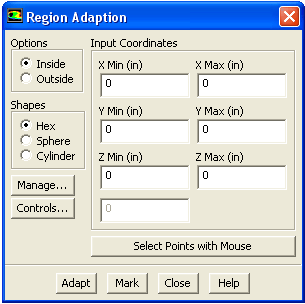
The
Adapt/Region... menu item opens the
Region Adaption dialog box.
Region Adaption Dialog Box
The
Region Adaption dialog box allows you to mark or refine cells inside or outside a specified region defined by text or mouse input. See Section
27.6 for details.
Controls
Options
contains radio buttons that control whether the cells inside or outside the region are marked for refinement.
Inside
enables the marking of cells with centroids that are within the region.
Outside
enables the marking of cells with centroids that are outside the region.
Shapes
contains radio buttons that control the type of region.
Hex/Quad
defines a hexahedral region in 3D or a rectangular region in 2D. The appropriate button will appear for the solver you are using.
Sphere/Circle
defines a spherical region in 3D or a circular region in 2D. The appropriate button will appear for the solver you are using.
Cylinder
defines a cylindrical region in 3D or a rectangular region in 2D.
Manage...
opens the
Manage Adaption Registers dialog box, which allows you to display and manipulate adaption registers that are generated using the
Mark command.
Input Coordinates
defines the extent of the selected region. The appearance of this box changes depending on the type of region selected.
If the region selected is a hexahedron or quadrilateral, you will input the minimum and maximum coordinates defining the box. (The
Radius real number field will not be active.)
X Min,Y Min,Z Min
define the coordinates of the minimum point defining the hexahedron or rectangle. For quadrilaterals, the
Z Min real entry field will not be active.
X Max,Y Max,Z Max
define the coordinates of the maximum point defining the hexahedron or rectangle. For quadrilaterals, the
Z Max real entry field will not be active.
If the region selected is a sphere or circle, you will input the coordinates of the sphere's center and its radius. (The maximum coordinate real number fields will not be active.)
X Center,Y Center,Z Center
are the coordinates of the centroid of the sphere or circle. For circles, the
Z Center real entry field will not be active.
Radius
is the radius of the sphere or circle.
If the region selected is a cylinder, you will input the minimum and maximum coordinates defining the cylinder axis, as well as the radius of the cylinder.
X-Axis Min,Y-Axis Min,Z-Axis Min
define the coordinates of the minimum point defining the cylinder axis. For 2D cases, the
Z-Axis Min real entry field will not be active.
X-Axis Max,Y-Axis Max,Z-Axis Max
define the coordinates of the maximum point defining the cylinder axis. For 2D cases, the
Z-Axis Max real entry field will not be active.
Radius
is the radius of the cylinder. (In 2D, this will be the width of the resulting rectangle.)
Select Points with Mouse
activates selection of input coordinates with the mouse. If one of the mouse buttons is defined as a mouse probe, you may select the input coordinates from a display of the mesh or solution field. For more information on mouse buttons, please refer to Section
29.3. After you select the points, the values will be loaded automatically into the appropriate real number field. If you desire, you can edit these values before marking or adapting. The order of input for defining a hexahedron (rectangle) is insignificant, but the order of input for the sphere (circle) has significance. First, you select the location of the centroid. Then you select a point that lies on the sphere, i.e., a point that is one radius away from the centroid.
Adapt
adapts the mesh based on the region defined and the in/out option.
Mark
marks the cells to be refined based on the region defined and the in/out option. This command produces an adaption register. For information on using adaption registers, see Section
27.11.1.
![[ANSYS, Inc. Logo]](fluentlogo.gif)