[ANSYS, Inc. Logo] return to home search
next up previous contents index

27.6.1 Performing Region Adaption

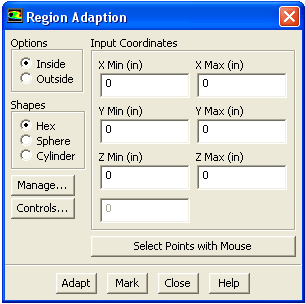
You will perform region adaption in the Region Adaption dialog box (Figure  27.6.1).

Adapt $\rightarrow$ Region...

Figure 27.6.1: The Region Adaption Dialog Box
figure

The procedure for performing isovalue adaption is as follows:

1.   In the Region Adaption dialog box, choose the Inside or Outside option.

  • If you choose Inside, cells with centroids within the specified region will be marked or refined.

  • If you choose Outside, cells with centroids outside the specified region will be marked or refined.

2.   Specify the shape of the region.

In 2D, you may choose a Quadrilateral, Circle, or Cylinder. In 3D, you may choose a Hexahedron, Sphere, or Cylinder.

3.   Define the region by entering values into the dialog box or by using the mouse.

In the dialog box the inputs are as follows:

  • To define a hexahedron or quadrilateral, enter the coordinates of two points defining the diagonal of the box.

    For a hexahedron, define ( Xminimum,Yminimum,Zminimum) and ( Xmaximum,Ymaximum, Zmaximum). For a quadrilateral, define ( Xminimum,Yminimum) and ( Xmaximum,Ymaximum).

  • To define a sphere or circle, enter the values for the Radius and the coordinates of its center; ( Xcenter, Ycenter, Zcenter) for a sphere or ( Xcenter, Ycenter) for a circle.

  • To define a cylinder, enter the value for the Radius and the minimum and maximum coordinates defining the cylinder axis; ( X-Axis Min, Y-Axis Min, Z-Axis Min) and ( X-Axis Max, Y-Axis Max, Z-Axis Max) for 3D or ( X-Axis Min,Y-Axis Min) and ( X-Axis Max,Y-Axis Max) for 2D. In 2D, this will be the width of the resulting rectangle.

4.   To define the region using the mouse, click on the Select Points with Mouse button. Using the right mouse button select the input coordinates from a display of the mesh or solution field. After selecting the points, the values will be loaded automatically into the appropriate fields in the dialog box. See Section  29.3 for details about mouse button functions.

If you want, you can edit these values before marking or adapting.

  • To define a hexahedron or quadrilateral, select the two points of the diagonal in any order.

  • To define a sphere or circle, first select the location of the centroid and then select a point that lies on the sphere/circle (i.e., a point that is one radius away from the centroid).

  • To define a cylinder, first select the two points that define the cylinder axis and then select a point that is one radius away from the axis.

5.   (optional) If you want to set any adaption options (described in Section  27.12), click on the Controls... button to open the Mesh Adaption Controls dialog box.

6.   Click Mark to mark the cells for refinement by placing them in an adaption register (which can be manipulated as described in Section  27.11.1), or click Adapt to perform the refinement immediately.


next up previous contents index Previous: 27.6 Region Adaption
Up: 27.6 Region Adaption
Next: 27.7 Volume Adaption
Release 12.0 © ANSYS, Inc. 2009-01-29