![[ANSYS, Inc. Logo]](fluentlogo.gif)


|
|
|
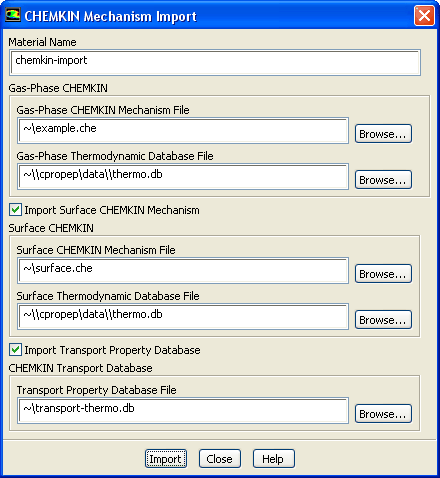
If you have a gas-phase chemical mechanism in CHEMKIN format, you can import the mechanism file into ANSYS FLUENT using the CHEMKIN Mechanism Import dialog box (Figure 15.1.10).
File
 Import
 CHEMKIN Mechanism...
In the CHEMKIN Mechanism Import dialog box
If you want to use KINetics transport properties, you must first enable the KINetics from Reaction Design option in the Species dialog box (Figure 15.1.1). Once a file with KINetics transport properties is read, ANSYS FLUENT will create a material with the specified name, which will contain the data for the species and reactions, and add it to the list of available Mixture Materials in the Create/Edit Materials dialog box. For material properties such as Specific Heat, Viscosity, Thermal Conductivity, Mass Diffusivity, and Thermal Diffusion, listed in the Create/Edit Materials dialog box, the option reaction-design will appear in the drop-down list of each of the properties (Figure 15.1.11), allowing you to use material property values computed by KINetics.
Note that when Full Multicomponent Diffusion is enabled in the Species dialog box, KINetics returns full multicomponent diffusivities. If Full Multicomponent Diffusion is disabled, KINetics returns mixture averaged mass diffusivities for each specie.
Note that since ANSYS FLUENT does not solve for the last specie, you should ensure that the last specie in the CHEMKIN mechanism species list is the bulk specie. If not, edit the CHEMKIN mechanism file before importing it into ANSYS FLUENT, and move the bulk specie (i.e. the specie in your system with the largest total mass) to the end of the species list.
|
|
Note that the CHEMKIN import facility does not provide full compatibility with all CHEMKIN rate formulations and that to access more complete functionality, you should consider the KINetics module option described in Section
15.1.2.
|
For information on importing a surface kinetic mechanism in CHEMKIN format, see Section 15.2.8.
Previous:
15.1.8 Postprocessing for Species