![[ANSYS, Inc. Logo]](fluentlogo.gif)


|
|
|
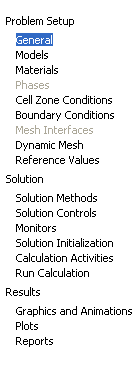
The navigation pane, located on the left side of the FLUENT GUI, contains a list of task pages, as shown in Figure 2.1.5
The list consists of Problem Setup task pages, Solution-related activities, and a Results section for postprocessing.
When any of the items under Problem Setup, Solution, or Results is highlighted, the task page (Section 2.1.4) will be displayed to the right of the navigation pane. The items in the navigation pane are listed in the order in which you would normally set up, solve, and postprocess a case.
Using the navigation pane is an alternative to using the menu bar. For example, there are two ways you can access the Viscous Model dialog box. To access it using the navigation pane, highlight Models in the navigation pane by clicking on it with your left mouse button. The Models task page will appear to the right of the navigation pane. Select Viscous from the Models list and click the Edit... button (or simply double-click on Viscous) to open the Viscous Model dialog box.
 Models

 Viscous
 Edit...
You can also access the Viscous Model dialog box using the following menu path:
Define
 Models...
This will open the Models task page, where you will select Viscous from the Models list and click the Edit... button (or simply double-click on Viscous) to open the Viscous Model dialog box.
Note that while most of the task pages can be accessed using the navigation pane, there are some dialog boxes that can only be accessed using the menu path. For example, to access the Custom Field Function Calculator dialog box, use the following menu path:
Define
 Custom Field Functions...
Previous:
2.1.2 Toolbars