In
ANSYS FLUENT, the application window will house the menus and console, as well as multiple graphics windows, task pages, and a navigation pane. By default, all components are displayed and one graphics window is visible. You can toggle the visibility of the toolbars, navigation pane, task page, and graphics window. You can also detach or embed the graphics window. The menu bar and the console are never hidden. The graphics windows, when anchored within the application window, will be placed on the right side, immediately below the toolbar. You also have the option of viewing separate graphics windows as described in Section
29.2.2. A description of the
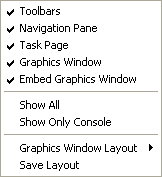
View menu options which control the layout of the GUI is provided in the list that follows.
Figure 29.4.1: The
View Menu
 |
-
Toolbars
allows you to customize the appearance of
ANSYS FLUENT by displaying or hiding the
ANSYS FLUENT toolbars. There are two toolbars. A general toolbar for read case, save and help commands. Another toolbar with commands that apply to the active graphics window. When the graphics window is hidden, the toolbars are visible. By default, all toolbars are visible.
-
Navigation Pane
allows you to customize the appearance of
ANSYS FLUENT by displaying or hiding the
Navigation Pane which is a small pane on the left side of the GUI. One row is always highlighted and signifies the
w task pageich is displayed to the right of the
Navigation Page. Depending on user input, sometimes one or more items are not displayed in the
Navigation Pane.
Figure 29.4.2: The Navigation Pane
 |
-
Task Page
allows you to customize the appearance of
ANSYS FLUENT by displaying or hiding the task page which is on the right side of the
Navigation Pane. You can set the controls provided in the task page before running the calculation. The task page can also be opened using menu items. Each task page has a
Help button which opens the help to the appropriate page in the reference guide.
Figure 29.4.3: The General Task Page
 |
-
Graphics Window
allows you to customize the appearance of
ANSYS FLUENT by displaying or hiding the
Graphics Window which is on the right side of the GUI, below the toolbar.
-
Embed Graphics Window
allows you to anchor the graphics window within
ANSYS FLUENT, or detach the windows such that they are free-floating.
For more information, refer to Section
29.4.1.
-
Show All
allows you to customize the appearance of
ANSYS FLUENT by showing all of the GUI components with one command.
-
Show Only Console
allows you to customize the appearance of
ANSYS FLUENT by showing only the console window along with the menu bar in the application window. The console window is anchored to the lower right corner of the application window. If
Show Only Console is selected, the menu items of the hidden item (toolbars, navigation pane, task page, and graphics window) are unchecked in the
View menu. You can resize the console window as you wish with the minimum height being 2 lines. The console window will display messages to the user and provide access to the TUI.
|
-

|
Whenever a GUI component is hidden and you issue a command that requires a hidden GUI component, the view is changed automatically to complete the request.
|
-
Graphics Window Layout
allows you to customize the appearance of
ANSYS FLUENT by displaying multiple views. This menu has a submenu with several options. By default, one graphics window is displayed and the window numbering will start at
 . As you can see in Figure
29.4.5, you may display up to 4 windows. You can select any existing window to view through the drop-down menu above the window. You may click on any window to change it from inactive to active.
. As you can see in Figure
29.4.5, you may display up to 4 windows. You can select any existing window to view through the drop-down menu above the window. You may click on any window to change it from inactive to active.
Figure 29.4.4: Graphics Window Layout Submenu
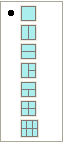 |
Figure 29.4.5: Graphics Window Layout Options
 |
-
Save Layout
allows you to save the current layout of the GUI, including the visibility of the current GUI components and the configuration of the dialog boxes and graphics window. This saved layout is applied when you start
ANSYS FLUENT, utilizing a
.cxlayout file that is written in your home directory. The default position will be used for any dialog box that is not repositioned when you save the layout. The
.cxlayout file in your home directory applies to all
Cortex applications (i.e.,
ANSYS FLUENT,
MixSim, and
TGrid).


 Previous:
29.3 Controlling the Mouse
Previous:
29.3 Controlling the Mouse
Up:
29. Displaying Graphics
Next:
29.4.1 Embedding the Graphics
Release 12.0 © ANSYS, Inc. 2009-01-29 ![[ANSYS, Inc. Logo]](fluentlogo.gif)

