![[ANSYS, Inc. Logo]](fluentlogo.gif)


|
|
|
If the standard ANSYS FLUENT laws, Laws 1 through 7, do not adequately describe the physics of your discrete phase model, you can modify them by creating custom laws with user-defined functions. More information about user-defined functions can be found in the separate UDF Manual. You can also create custom laws by using a subset of the existing ANSYS FLUENT laws (e.g., Laws 1, 2, and 4), or a combination of existing laws and user-defined functions.
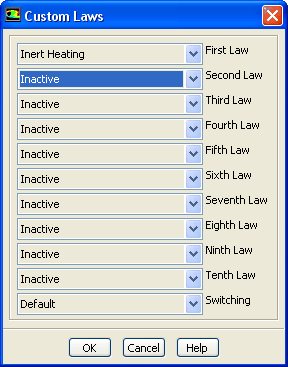
Once you have defined and loaded your user-defined function(s), you can create a custom law by enabling the Custom option under Laws in the Set Injection Properties dialog box. This will open the Custom Laws dialog box. In the drop-down list to the left of each of the six particle laws, you can select the appropriate particle law for your custom law. Each list contains the available options that can be chosen (the standard laws plus any user-defined functions you have loaded).
There is a seventh drop-down list in the Custom Laws dialog box labeled Switching. You may wish to have ANSYS FLUENT vary the laws used depending on conditions in the model. You can customize the way ANSYS FLUENT switches between laws by selecting a user-defined function from this drop-down list.
An example of when you might want to use a custom law might be to replace the standard devolatilization law with a specialized devolatilization law that more accurately describes some unique aspects of your model. After creating and loading a user-defined function that details the physics of your devolatilization law, you would visit the Custom Laws dialog box and replace the standard devolatilization law (Law 2) with your user-defined function.
Previous:
23.3.16 Specifying Turbulent Dispersion