|
NJoyInputMaker
|
|
June 3, 2008
|
|
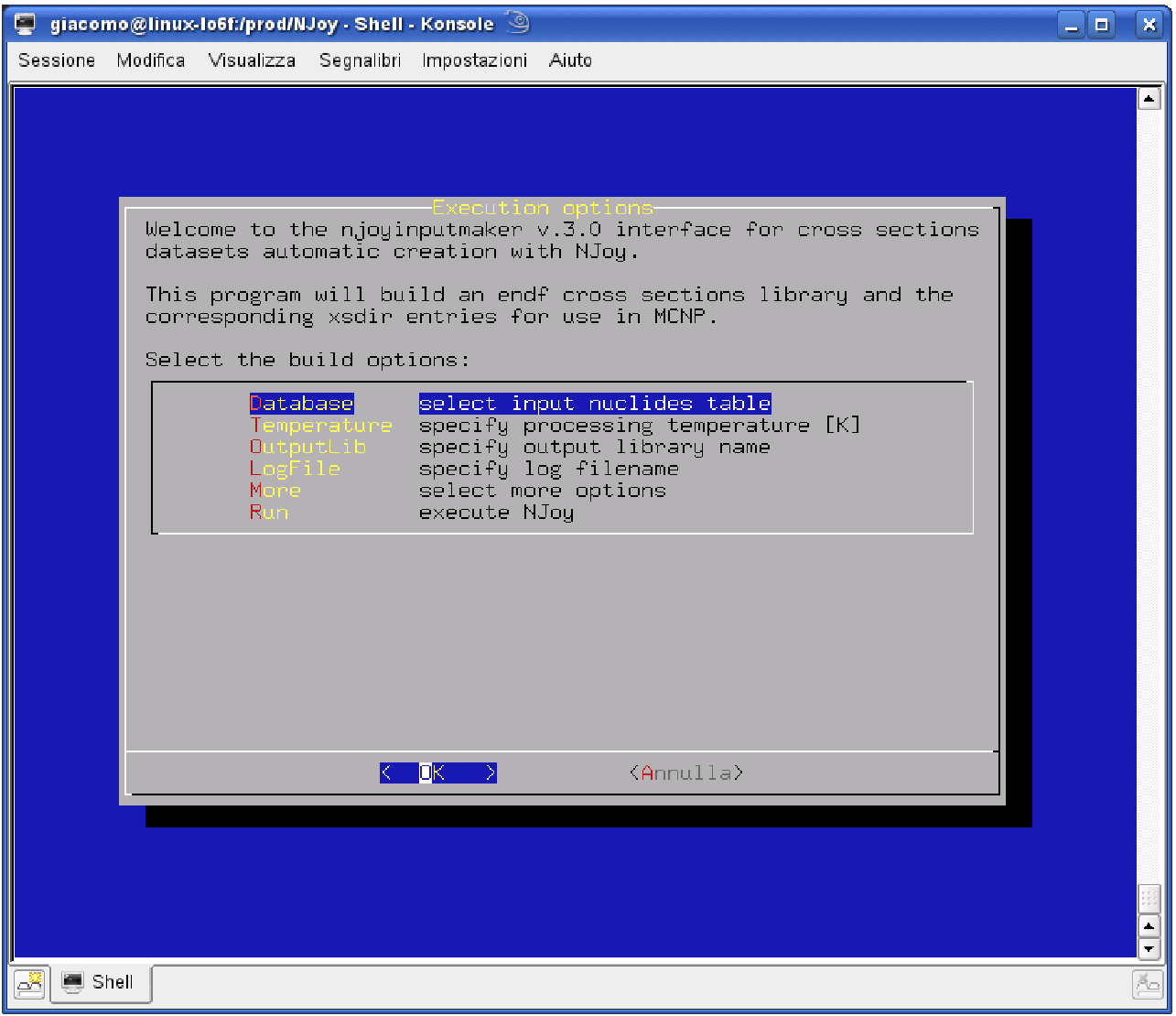
The dialog-based GUI introduced in the present version guides the user through the set up of the whole environment, from the input file and temperature strictly needed to run the processing, to the defining of the paths to the NJoy executable, the input library tapes and the output library file.
The dialogs are organized to separate the main variables setting from that of the optional parameters. The first menu driven dialog allows the user to access the child dialogs where it is possible to set the main environment variables.
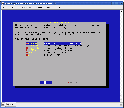
Main dialog window.
|
|
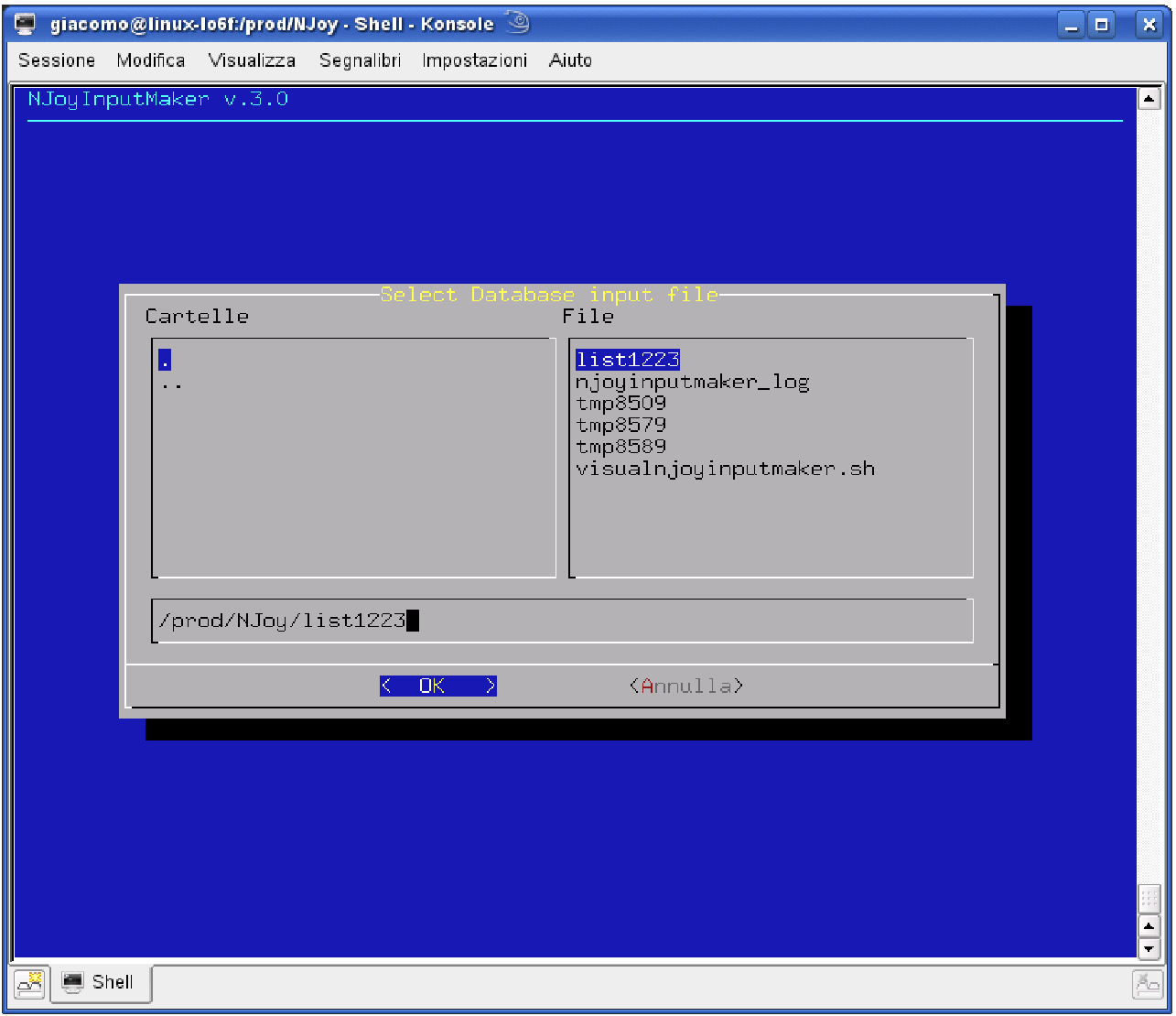
The first child (corresponding to the "Database" entry in the main dialog) is a file-select dialog, which allows the user to navigate the filesystem looking for the input file listing the processing libraries. The dialog window is divided in three portions: an editable navigation bar in the bottom part and a folders and a files list selectors in the top part. The user can navigate the filesystem by choosing a folder in the folders view by means of the arrow buttons, and then selecting it with the space bar. The choice is then confirmed by pressing the enter button. The working directory is updated at every selection - and, consequently, the folders and files view are refreshed to show the actual position content - until a file is selected. Alternatively, it is possible to specify manually the input file by typing the whole url to the file itself.
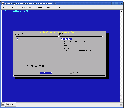
Database file-select dialog window.
|
|
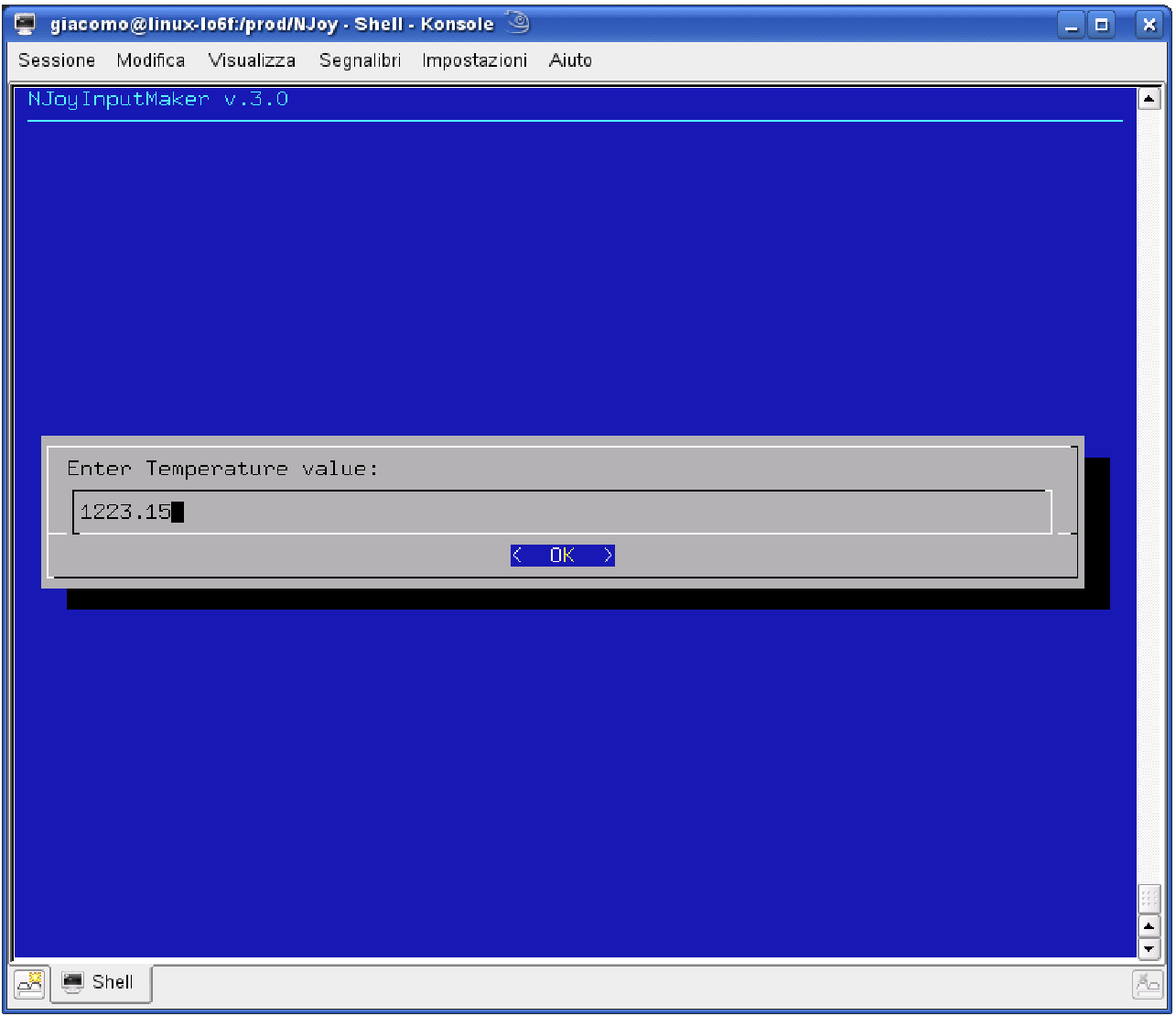
The second child (the "Temperature" entry one) is an input-box dialog: the user is simply asked to type the temperature (in Kelvin) to process the cross section libraries at.
Similar dialogs are invoked by the "OutputLib" and "LogFile" entries of the main menu to specify the name of the output library file and of the script log file respectively.
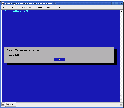
Temperature input-box dialog window.
|
|
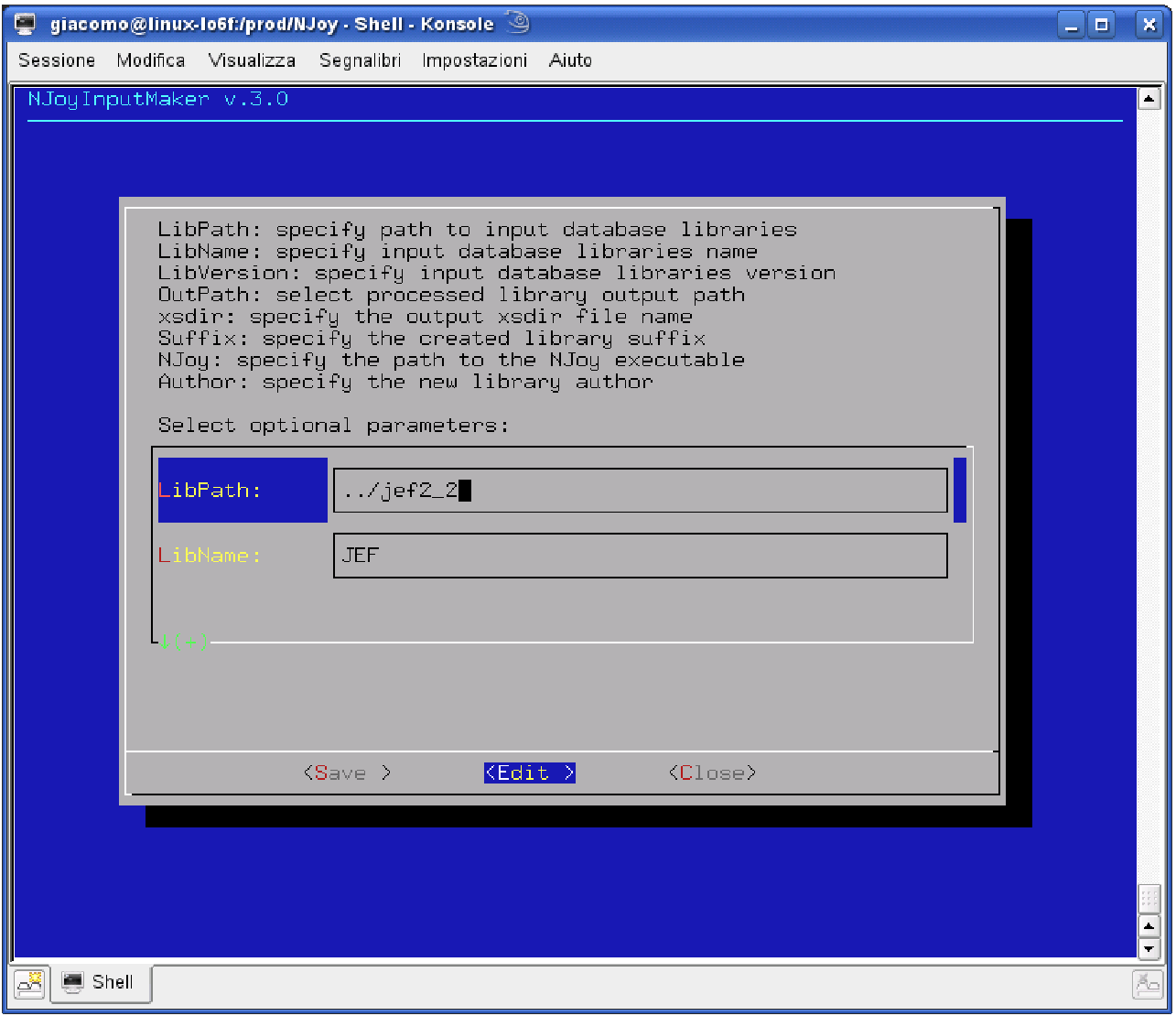
The "More" entry of the main dialog opens the last child dialog, an edit dialog. The optional variables, together with their actual value, are listed. Every variable can be edited by selecting it with the up-down arrows, moving left/right on the edit button and then pressing the enter key. When every field has been tuned, it is possible to accept the whole changes by selecting the ok button.
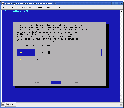
More options edit dialog window.
|
|
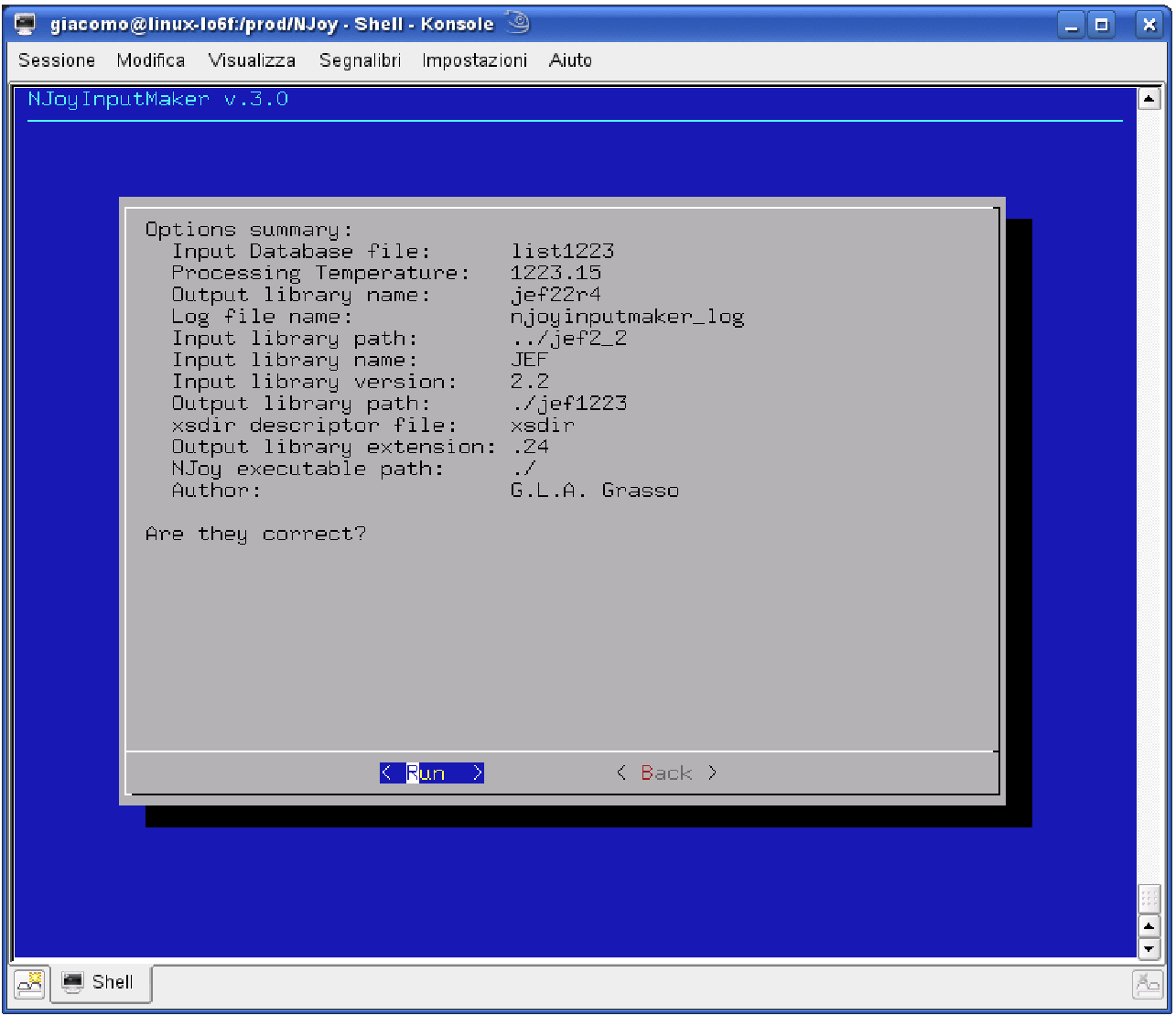
The last kind of dialog window is a summary dialog, proposed to the user when the "Run" option is chosen in the Main menu, before executing the script kernel (for the processing of the cross sections libraries), in order to let the user verify the correctness of the choices operated.
Run summary dialog window.
|
 Tools
Tools